Using your Digital Licence app
The digital licence is a quick, safe and secure way for you to verify your identity.
On this page:
Downloading the Digital Licence app
You can download the Digital Licence app from the Apple (iOS) or Google (Android) app stores.
The Digital Licence app is only available for iOS or Android. There are currently no plans to make the app available for other devices or operating systems.
Onboarding
The first time you use the app after downloading, you will need to onboard with the app—a series of steps you must complete before using it.
Adding other credentials to the app
You can add other Queensland Government credentials to your app if you currently hold that credential.
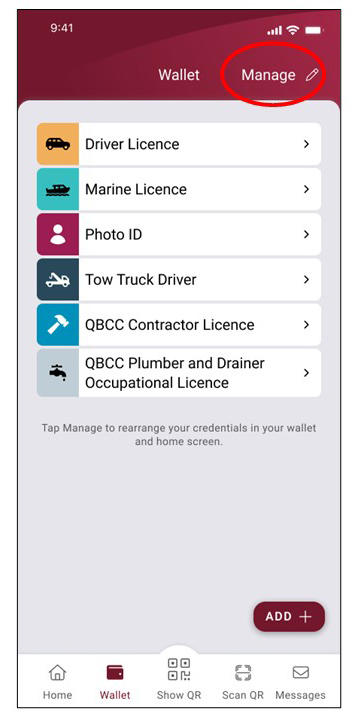
Managing your credentials in the app
If you have multiple credentials in the app, you can choose which ones appear on your home screen.
- Open the Wallet screen and select Manage.
- Drag and drop credentials into the Favourites section or remove any you don’t want displayed.
- Select Done in the top-right corner.
Your selected favourites will now appear on your home screen.
Sharing your information
The digital licence uses a consent-based model for sharing information. This means:
- you'll always know exactly what information you're sharing
- you must give permission before any information is shared
This way you're in control and only sharing what you need to, with the people you need to.
There are 3 ways you can share your information from your Digital Licence app with a person or business (a verifier)
- QR code: The verifier can scan the QR code from your app. This is also referred to as digital verification.
- Show your screen: Display your app screen so the verifier can visually check your information.
- PDF copy: Share with a verifier by email, text or by providing a printed copy.
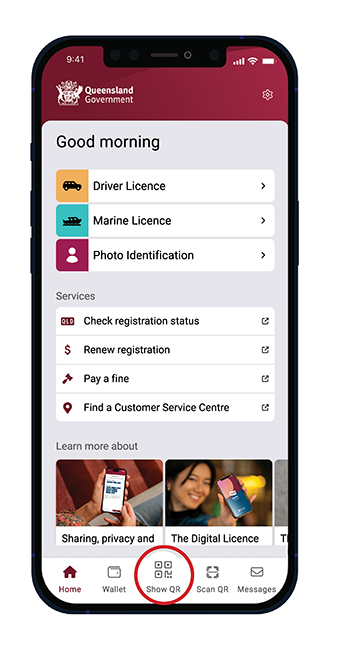
Sharing via QR code for digital verification
A business can use their Digital Licence, the Digital Licence Verifier, or a compatible third-party app to scan your Digital Licence, and get the information they need. This is the safest and most secure way for a business to verify your information.
Using the Digital Licence Verifier app or third-party app:
- The business (verifier) opens their app and selects the information they need. They will also decide whether they will be retaining your information.
- You select ‘Show QR’ from the main menu and present it to the verifier.
- The verifier will scan it with their device. Once scanned you’ll see what information they have asked for on your screen, and whether they will be retaining it.
- If you are happy with what they are asking for, you provide your consent to share the information. Your device will securely transfer it to their device. If you are not sure or don’t agree, select No, and the transaction will be cancelled.
Using your Digital Licence app to verify another Digital Licence app
You can use your Digital Licence to scan another person's Digital Licence when they present their information to you.
- Select the Scan QR code option at the bottom of the app's home screen.
- Select the bundle of information you need from the other person, and whether you will be retaining that information. The Digital Licence app cannot retain the information, so if you are retaining, you will need to do so in a third-party system.
- The other person will show you their device, and you can use the in-app camera to scan the QR code on their screen.
- If they consent, the information they have shared with you will then appear on your screen.
To scan another Digital Licence, you must use the in-app camera. You cannot use your device's regular camera mode.
For more information on scanning, check out our information for businesses and verifiers.
Visual check
For low-risk transactions, a business may just ask to see your information.
- Select one of the credentials from the home screen.
- Show the screen displaying your credential and scroll to show relevant details (for example, your address).
- The business will complete some checks to confirm that it’s genuine.
Share a PDF copy
Sometimes, a business may need a copy of your physical driver licence. Since that's not possible from your phone, the Digital Licence app lets you export your information in a PDF document.
- Select which credential you want to share.
- Select 'Share PDF Copy'.
- Once you consent, you’ll be asked to share a document named 'credential.pdf' using your phone's sharing methods, such as SMS, email or messenger apps.
Important: Sharing your credential via PDF will share all the information in that credential. You will not be able to choose what fields appear on the PDF.
Here's an example of how to share your information as a PDF document.
Here's an example of how to share your information as a PDF document.
Did you know you can now use the Queensland Digital Licence App whenever you're asked to provide a printable copy of your ID?
The app gives you complete control over what you share and with whom.
If you're asked for a printed copy of your ID, navigate to the Share menu, select the option that fits, and in this case it's 'Share a printable copy'.
The app will prompt you to select your preferred method of sharing the copy - email and text messages are just a couple of the options.
It's so convenient; your ID can be printed and ready in moments. You always have your phone with you and now you'll have a printable copy of your ID at your fingertips. The Queensland Digital Licence App: it's a simple and secure way for you to share your information.
App settings
To access the settings on your Digital Licence app, select the cog icon in the bottom bar on the app's home screen.
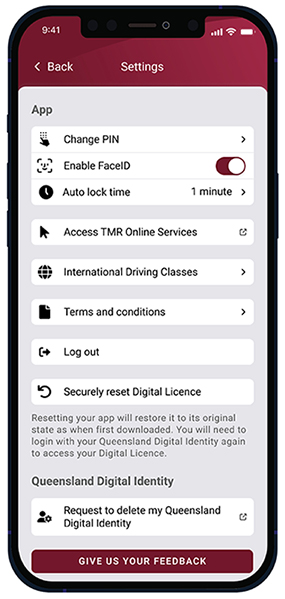
Change PIN
- This lets you change the PIN you set when you first onboarded.
- You need to enter your existing PIN, and then enter your new PIN twice.
The app tells you if you have successfully updated your PIN.
Changing your Digital Licence app pin is easy.
You can reset your digital Licence app pin anytime using the Settings function.
At the bottom of the screen, tap the cog icon, then to change your pin, select Change PIN from the Settings menu.
Now enter your current PIN, then enter your new PIN, then confirm your new PIN by entering it again. A confirmation message will appear on your phone telling you that you have successfully changed your PIN.
Remember to keep your personal information safe by not sharing your PIN or writing it down where it could be found.
You can contact us if you need any support.
Enable Face ID/Touch ID/Fingerprint Access
This allows you use the Face ID/Touch ID (iOS) or Fingerprint Access (Android) settings you have set up on your phone, in order to access the app
Auto lock time
This allows you to set the auto lock time of the app to 1, 3 or 5 minutes.
Access TMR Online Services
This takes you to Transport and Main Roads website where you can login to perform online services, such as renewing vehicle registration or updating your customer details.
International Driving Classes
This allows you to switch to international driving classes, which you should consider when you are driving overseas. You should also check the overseas jurisdiction to see if they accept digital driver licences.
Terms and conditions
This shows you the terms and conditions you accepted as part of the onboarding process, when you first signed in to the Digital Licence.
Log out
This logs you out of your current Digital Licence app session. To log back in, you will need to enter your PIN, or scan your face or fingerprint.
Securely reset Digital Licence
- This removes all forms of identity from the Digital Licence app, and you will need to login again with your Queensland Digital Identity.
- You may be asked to do this as part of troubleshooting if you are experiencing an issue with your app.
Request to delete my Queensland Digital Identity
This takes you to our website where you can find information on requesting to delete or deactivate your Queensland Digital Identity.
Give us your feedback
This allows you to report a problem, suggest an improvement, or give any other feedback on the app.
I've lost my phone
If you lose your phone, your private information is protected by the security features of the app, as well as any security features you have enabled to access your phone (such as fingerprint or face scan).
You can contact us on 13 23 80 and we will remove your credentials from the lost device. That way, if someone is able to get past your phone and app security, your credentials will no longer be in the app.
When you get a new device, you can re-install the app. Your credentials will download automatically when you log in to the app.
This is one of the ways that the digital licence is more secure than a physical card, which could be misused if found.
When you install the Digital Licence app, you create a PIN, which must be entered every time you open the app.
Your private information is encrypted on your device and only available if the PIN is known.
If you lose your phone, your private information is protected by the app PIN and the security features you have enabled on your phone.
If you lose your phone you can call 13 23 80, Monday to Friday excluding public holidays and we will remove your credentials from the lost device.
This means even if someone can get past your phone's security and the app security, your personal details will no longer be in the app.
When you get a new device you can install the app, and once you have logged in, your TMR credentials will download.
This is one of the ways the Digital Licence app keeps your personal information safe from fraud or misuse.
Troubleshooting
No internet service
The Digital Licence app stores your encrypted information on the device. Using the internet, it will regularly check with our systems to ensure the information in the app is up to date.
If no internet service is available when you open the app, it will use the latest version of your information stored on your device. So you can continue to use the app to verify your identity.
Location services
The Digital Licence app uses Bluetooth technology to transfer information to another Digital Licence. The 'Location services' setting on your device must be active for this transfer to work correctly. The app does not track your location.
Flat battery
It is your responsibility to keep your device charged for situations when you expect to need your Digital Licence.
Additional support
Still having issues with the app? Contact us on 13 23 80 and our team will work with you to get it running smoothly again.